Step-by-step Tutorial
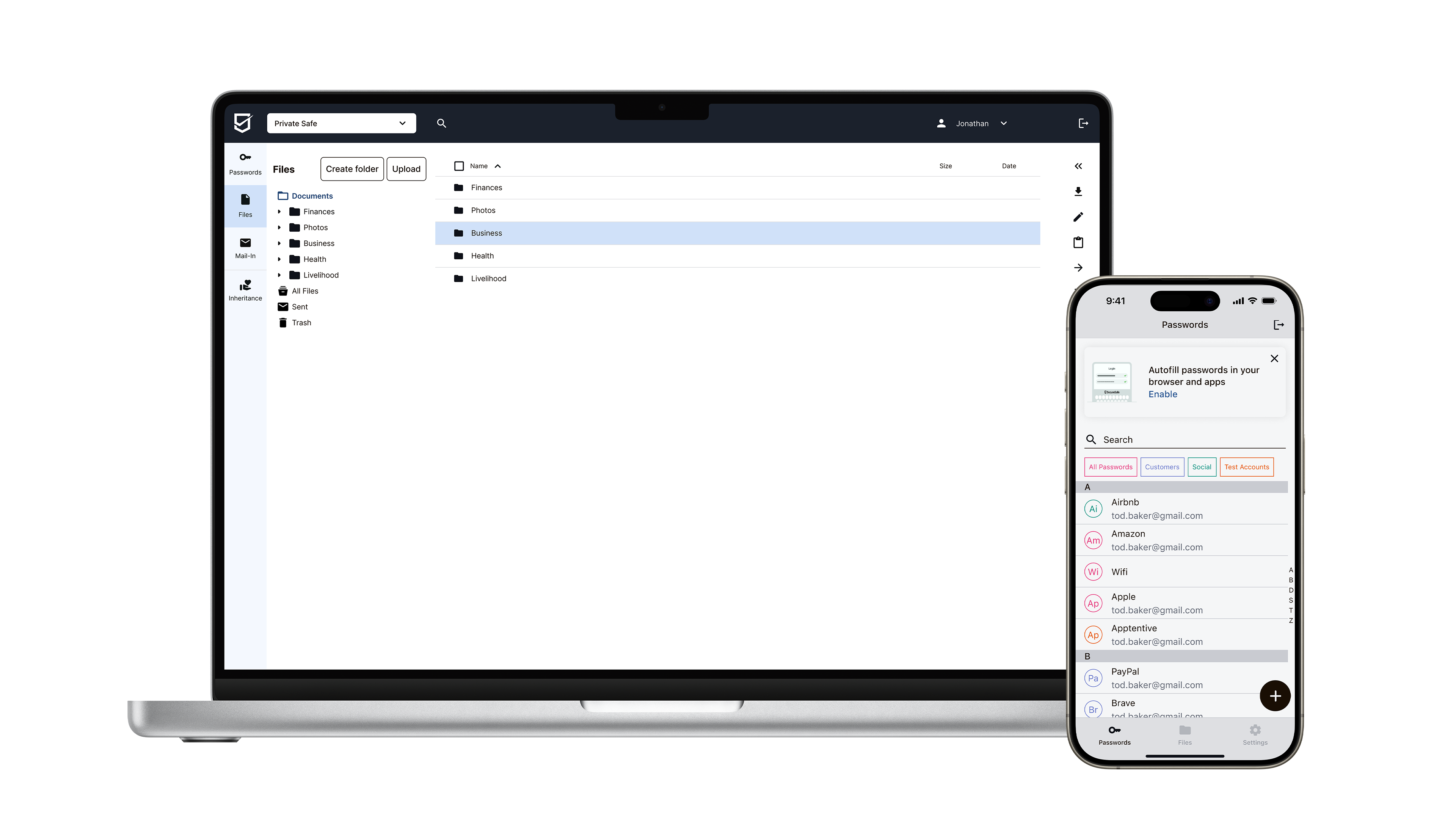
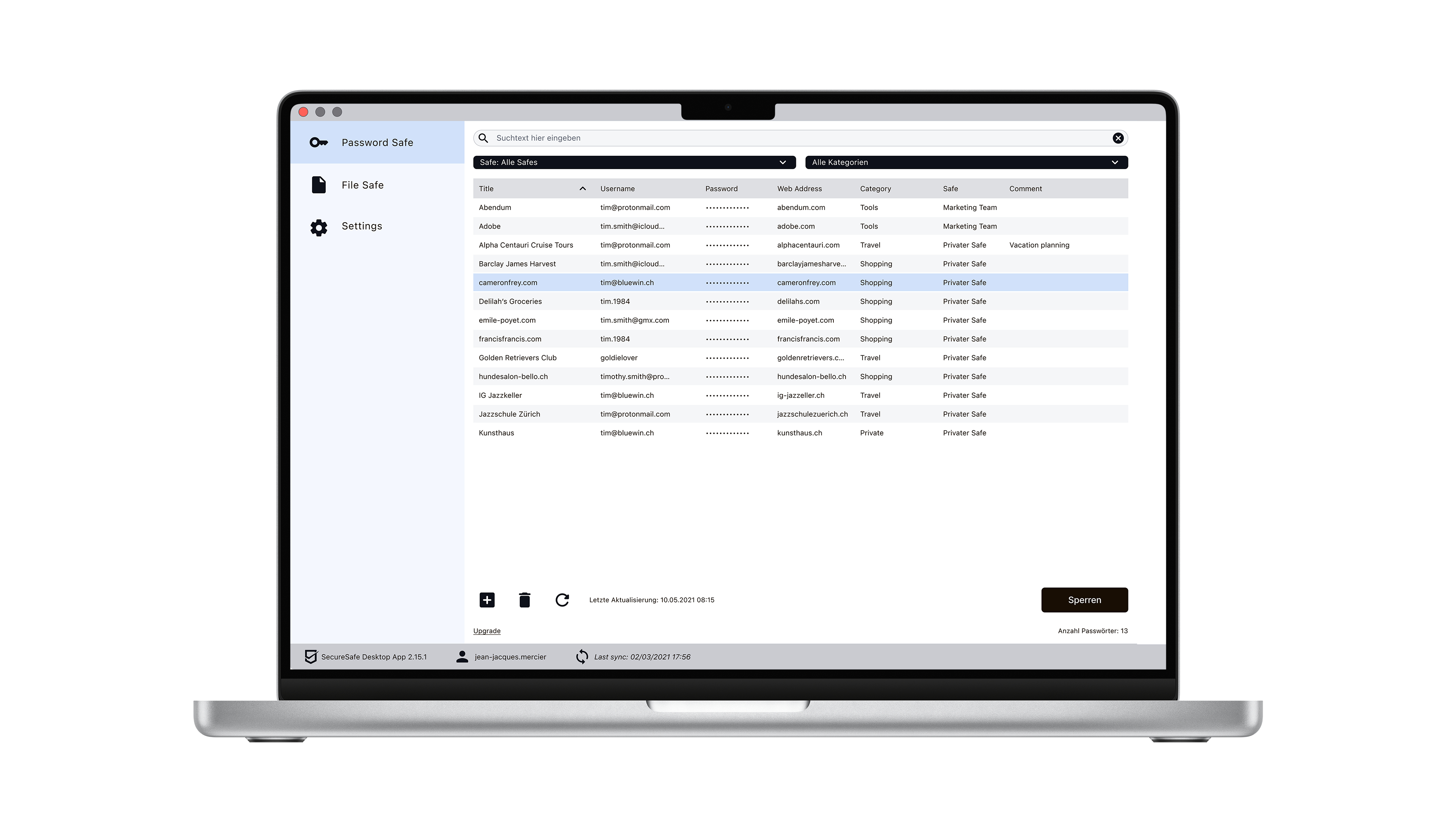
See also the text tutorials (below screen show). English screens will follow soon.
Step-by-step Tutorial
Setting up a DataInherit account
Before you start, we recommend the 3-minute Quick-Tour Movie.
1. Open an account
Open a free account. On www.datainherit.com follow the link "Password Safe FREE". Now fill in the fields. Choose your desired username, a password (which you have to confirm a second time), your email address (for notifications from your account). Then confirm the two instructions, by clicking in the checkbox at the left.
In the next step, you are given the opportunity to print out the login recovery code. Do this now, or at a later stage, from within the DataInherit safe.
Registration is carried out immediately after the next confirmation.
2. Get to know the DataInherit safe
Welcome to the DataInherit data-safe! Close the welcome-window that popped up. Follow the red speech bubble and click on the red status bar at the bottom right, “Data inheritance is disabled!” The status window opens, giving you a clear overview of the status of the most important settings, including instructions and help.
The three main tabs at top center are important: “Data-Safe” (for storing documents), “Password Safe” (for storing passwords), and “Data Inheritance” for entering the details of Beneficiaries and other preferences.
3. Place documents in the DataInherit safe
Click on the main “Data-Safe” tab, if you are not already there. By clicking on the “Upload” button, you can select one or more documents from your PC, to be transferred in highly secure encrypted form into the data-safe. Note that after clicking on “Upload”, you can quite easily select several documents on your hard disk simultaneously by holding down the Ctrl-key (Windows) or Command key (MacOS).
4. Store passwords in the DataInherit safe
Click on the main tab “Password Safe”. By clicking on the “New Password” button, you can enter important passwords, e.g. for your PC, for your email account, etc. Mobile phone PIN numbers and details for e-banking can also be entered.
5. Designate the Beneficiaries
Click on the main “Data Inheritance” tab. Here you designate the Beneficiaries and can set other preferences. Start by clicking on “New Beneficiary”; an input window opens, where you first type in the name of the first Beneficiary, e.g. the name of your spouse. The option “Secure email” is selected, indicating that your Beneficiaries will be notified by secure email and SMS in case of an emergency. Fill in the appropriate mobile phone number and email address. While doing this, be careful to enter them correctly (mobile phone number in the international format, for example +41 79 123 45 67 (Switzerland) or +49 33 333 33 33 (Germany). In the next window, you can write a personal message for the Beneficiary, which will be delivered along with the information about your data in the case of an emergency. Note that you do not have to notify the Beneficiaries at this point in time. What is important, however, is that you check the telephone numbers / email addresses regularly.
Note: you may click on the red status bar “Data Inheritance is disabled” at the bottom right at any time. You will be given a summary of what has already been correctly specified and what may still be missing.
6. Assign documents/passwords to the Beneficiaries
In the main “Data Safe” tab, select one document or several at a time and click on the button “Assign to Beneficiary”. Now select the desired Beneficiary in the dialog box. Assignment to several Beneficiaries at the same time is also possible. Confirm by “Save”.
7. Print out the activation code and hand over to trusted person
In the main “Data Inheritance” tab, you will find at the bottom right the section “Activation Code”. Click on “Show PDF”. Another window opens in your browser showing the activation code. Print this out, read it through carefully, fill it in and hand it over to your trusted person. You may print out several identical activation codes and hand them to several different trusted persons. A single person entering the activation code is enough to start the data inheritance (with a safety delay period, during which you can stop any erroneous activations). (Note: your DataInherit safe is still open in a browser window behind the PDF).
8. Print out the login recovery code and keep it in a safe place
There is also the login recovery code. This is meant exclusively for you and you alone, as DataInherit customer. It enables you to recover the login if you have, for example, forgotten your password or username, so that you can gain access to your data. Click at the top right on “Settings”, then on the “Security” tab. Under “Code to reset the account”, click on the button “New” to display and print out the corresponding PDF document for you to use. Please keep this document in a safe place. (Note: your DataInherit safe is still open in a browser window behind the PDF).
Note: you may click on the red status bar “Data Inheritance is disabled” at the bottom right at any time. You will be given a summary of what has already been correctly specified and what may still be missing.
9. Fill in the contact details, specify the safety delay period
In the main “Data Inheritance” tab, you will find on the right-hand side the section “My Contact Details”. Click on “Edit” and enter the name, telephone number and email address. Be careful to use the proper international format for the mobile phone number! Enter your personal mobile phone number and use the test button to check the functionality with a test SMS. (Optionally, you can also edit these details via “Settings” at the top right).
Specify the safety delay period, setting it to the desired period of time, e.g. 15 days. The safety delay period means the period of time during which you will be contacted by email and SMS, after one of your trusted persons has entered the activation code. You then have this period of time to halt the data inheritance in the case of erroneous activation. You may modify this safety delay period at any time, for example before going on a long holiday trip without email or SMS reception.
10. Enable data inheritance
On the main “Data Inheritance” tab, now click at the top right on “Enable” in order to initiate the entire data inheritance. Up to this point, data inheritance was not yet possible, which was ideal for getting to know and setting up the data-safe. If everything is set up properly, the status bar at the bottom right changes from “Data inheritance is disabled” to the green “OK”. If “Warning” appears in red, that means there is still something which has yet not been properly set up. So click on this red status bar to see a summary of what has been correctly entered so far and what may still be missing. Follow the instruction until “Data Inheritance Status: OK” appears on the status bar at the bottom right.
Now you have properly set up the entire DataInherit data-safe. Congratulations!
Data inheritance
1. Trusted person enters the activation code
If one of your trusted persons enters the activation code which has been handed over to them, on the DataInherit website, then the data inheritance for your account will be activated.
2. The DataInherit customer will be contacted during the safety delay period
As account holder and DataInherit customer, you will now be contacted and informed by email and SMS.
3. The DataInherit customer can stop the data inheritance
In the case of erroneous activation, you can log in to your account just as you usually do, and stop the activation. If this is not done, inheritance of the data is triggered at the end of the safety delay period.
4. Data inheritance is triggered
Now that the data inheritance is actually triggered, all the Beneficiaries you have designated will receive the necessary information by email, SMS or postal/courier service.
5. Beneficiaries receive the access details for the data
The Beneficiaries receive, via the method of communication you have specified, the details (username / password) for their own DataInherit data-safe, in which are found precisely those documents and passwords which you intended for the Beneficiary. In addition, the Beneficiaries receive the message personally written by you, together with complete instructions about how they can access the data.